Webfly team 4 min read
How to prepare a property listing page: photos, location and enquiries
Prepare consistent listing details, photo order, location information and consultant enquiries. A publication checklist with examples from the Vadi demo.
Contents
A property listing page should help visitors understand the property and decide what to ask the agent. If room counts, area, location and contact details contradict one another, a longer description will not resolve the problem. Prepare one consistent set of listing information first, then connect the photos and enquiry workflow to it.
1. Gather the essential listing information
Before publication, complete the sale/rental type, property type, district and neighbourhood, price, room layout, net and gross area, floor, building age and heating information. Keep an unknown value on your verification list instead of guessing it. A listing number helps the office match photos and enquiries to the right property.
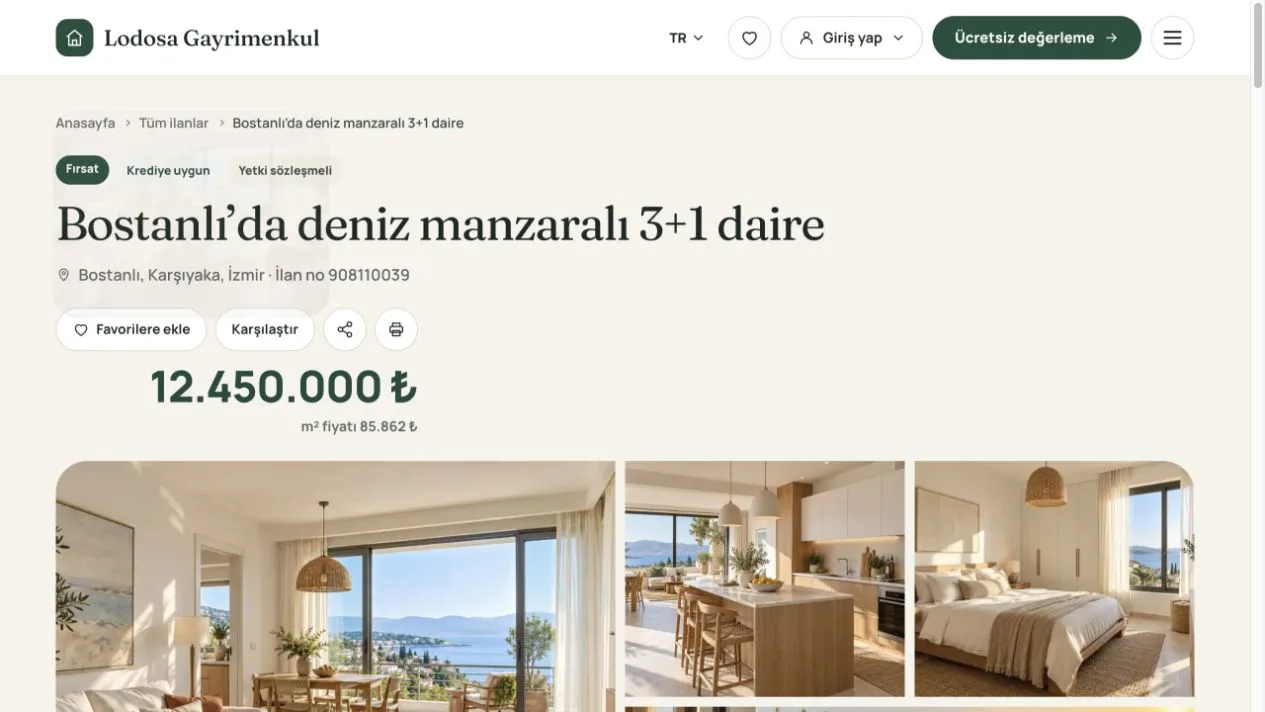
A title can combine location with a distinguishing feature. “Three-bedroom apartment in Bostanlı, Karşıyaka” is a clear starting point. If you add a sea view, terrace or parking space, make sure the description and images support that claim.
2. Show net and gross area separately
Visitors should not have to assume that the two measurements mean the same thing. In the Bostanlı example on the Vadi real estate theme demo, gross area is labelled as 145 m² and net area as 125 m². These are demonstration values, not figures to copy into your own listing.
Area, rooms and price should agree across the listing card, information table and description. When a numerical field changes, check whether the text still contains its old value. Filling in the theme's structured fields does not remove inconsistencies in the written description.
3. Arrange photos as a walkthrough
Choose a cover photo that supports the listing's title and main feature. Follow it with a clear sequence through the living room, kitchen, bedrooms, bathroom and any balcony or terrace. Show different spaces rather than many similar views of one corner. Verify that every photo belongs to the property; label an illustrative image when you use one.
Floor plans, videos and virtual tours should fill gaps in the photos. Check that a video opens and that the plan remains readable on a phone. Review image permissions and any details that could identify an occupant through their personal belongings before publishing.
4. Write a description using concrete information
Three short sections make a useful start: interior layout, building and surroundings, and points to clarify during a conversation. “Open-plan kitchen and living room with balcony access” tells visitors more than “an unmissable opportunity”. When mentioning travel distances, say whether they refer to walking, driving or an approximate distance.
Remove empty template text. Describe furnished/unfurnished status, known conditions and important limitations accurately. Do not present an unconfirmed feature or return as a promise. The page should provide an initial set of information that can be checked.
5. Connect location and consultant information
The neighbourhood and district text should agree with the map. If the pin is approximate, state that next to the map. The Vadi demo explains that the exact address is shared during a conversation, so visitors do not mistake the pin for an exact building address.
Assign the consultant who will follow the listing. A profile link gives visitors a way to browse that person's other properties. Check phone and email details before publication and make sure demonstration contact information has been replaced on your own site.
6. Keep the enquiry connected to the listing
A call to action such as “Ask about this property” gives clearer context than a general contact page. The property should remain associated with the enquiry, allowing the office to assign it to the relevant consultant. Distinguishing a request for information from a viewing request helps the team respond appropriately.
Submitting a form should not be treated as a confirmed appointment. Explain how your team will respond. Before launch, submit a test enquiry on your own site and check that it reaches the right property and responsible team member.
7. Check the page before publishing
- Do rooms, area and price agree in the title, card and information table?
- Are the photos for the right property, and do they open on a phone?
- Does the page explain whether the location is approximate or exact?
- Are the consultant profile and contact channels correct?
- Does the enquiry reach the right listing and team member?
- Have template text and demonstration contact details been removed?
If this workflow fits your portfolio, review the listing, consultant and customer panels on the Vadi theme page. Its live demo uses example content to show the workflow rather than advertising real properties for sale.