Webfly team 7 min read Updated 3 November 2026
How to prepare a QR menu: categories, items and prices
PDF or mobile digital menu? A cafe and restaurant comparison, a Mola screenshot, a worked price-update example and phone checks before publishing.
Contents
- QR menu comparison: PDF or mobile digital menu?
- 1. Build categories from your actual menu
- 2. Give each item enough information
- 3. Keep prices and availability consistent
- 4. Keep photos useful and manageable
- 5. Point the QR code at a lasting menu URL
- 6. Explain what happens after browsing
- 7. Test on a phone before printing
When preparing a QR menu, start by organising the menu people will read on their phones. Customers should be able to reach a category, understand an item and see its current price. Once that page is ready, a QR code provides a short route to it.
QR menu comparison: PDF or mobile digital menu?
A QR code is a link, not a menu system on its own. It can open a PDF file or a menu page designed for a phone. Choose according to how often the menu changes and how customers find an item.
| Comparison | QR code opening a PDF | Digital menu with an admin panel |
|---|---|---|
| Reading on a phone | Small text in a print layout may require zooming. | Categories, item names and prices adapt to the phone screen. |
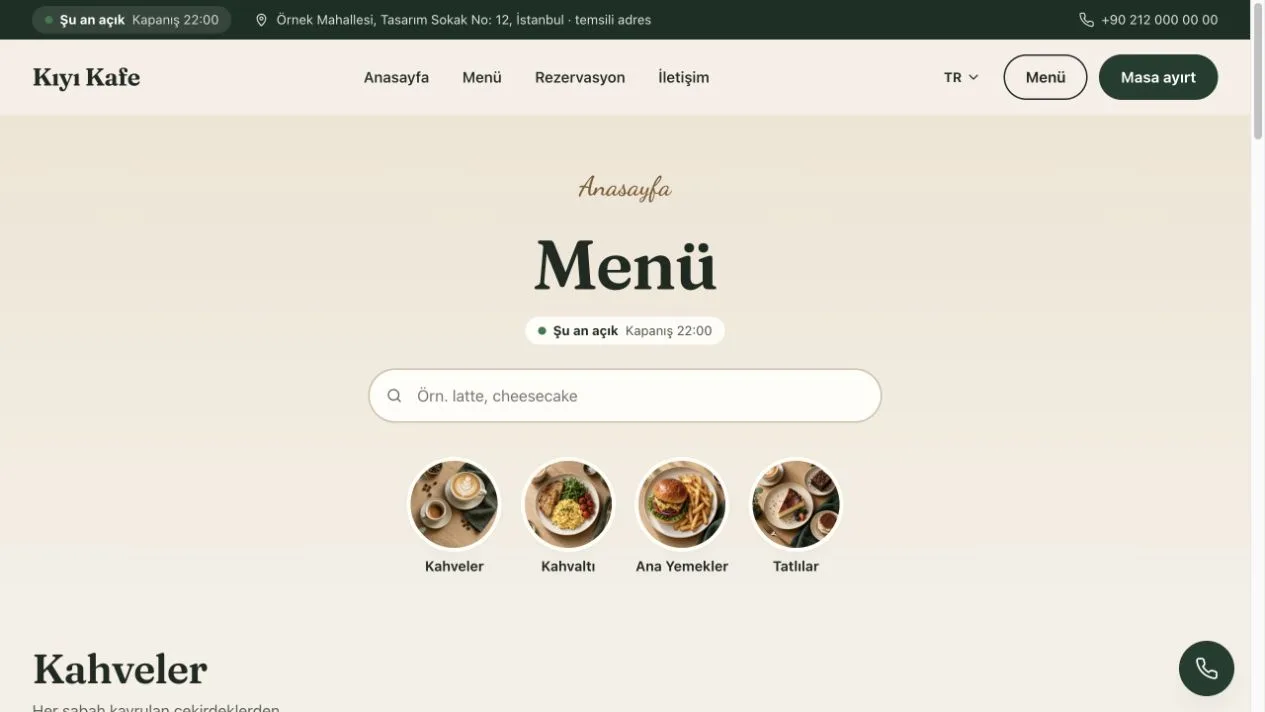
| Finding an item | Depends on the PDF reader and whether the file contains searchable text. | The Mola example provides categories and item search. |
| Changing prices | Edit the source layout and publish the updated PDF. | Edit item prices in the panel; Mola also supports bulk updates. |
| Temporarily unavailable items | Update the information in the file. | Mola lets you mark an item as sold out. |
| Reprinting the QR code | Unnecessary while the destination URL stays the same. | Unnecessary while the destination URL stays the same. |
| Setup and costs | A hosted file URL and a way to update the layout are needed. | Assess the license, domain and chosen hosting plan together. |
A readable PDF at a permanent URL may be enough for a menu that rarely changes. If you frequently change prices, need category and item search, or mark items as sold out, a managed digital menu may fit better. Features vary between providers; the digital-menu example in this comparison is the Mola cafe and restaurant theme.
Check ordering and payment separately. Mola's QR menu covers menu presentation and ways to contact the business. Do not assume it includes a till, kitchen-order system, POS integration or online payment.
1. Build categories from your actual menu
List the items your business serves first. Coffee, Breakfast, Main Courses and Desserts can be useful starting points. Giving every item its own category or duplicating one item under different names makes the menu harder to scan. Add a subcategory only when it helps visitors choose.
The live demo of the Mola cafe and restaurant theme places Cold Coffee under Coffee. Someone looking for Cold Brew can find both the main group and its cold options. Arrange categories around your business; the demo's order and item count are examples rather than requirements.
2. Give each item enough information
Keep the name, description, price and any photo in the same item record. Use a clear name rather than an abbreviation only your team understands. Describe ingredients or presentation when they influence the choice. For example, naming the bread and accompaniments in an Avocado Toast description is more useful than saying only “our special recipe”.
Include a portion size or volume when it is needed to understand the price. If you serve small and large versions, distinguish their names and descriptions. Verify any ingredient or allergen information against the current recipe used in your kitchen; do not infer it from a menu photo.
3. Keep prices and availability consistent
The printed menu, digital menu and prices given by staff should agree. Open the published menu when checking a change rather than relying on an old screenshot. Mark temporarily unavailable items as sold out so they do not appear to be available to order.
Mola can prepare a bulk price adjustment for selected items, one category or the whole menu. After selecting an amount/percentage and rounding options, check the proposed prices in the preview. If you are updating only coffee, confirm that breakfast items have not been included accidentally. Open a few items on the visitor-facing page after applying the change.
Example: updating only the coffee prices
This is a worked example. These amounts are not the prices of a real business or a Webfly plan. If an example coffee costs TRY 100, a 10% increase should show TRY 110 in the preview.
- Open menu items in the admin panel and select the coffee category to update.
- Enter the percentage change in the bulk-price tool and check any rounding option.
- Review the selected items and new prices in the preview. Make sure breakfast and dessert items are not included by mistake.
- Apply the change after reviewing it, then open the menu on a phone and check several item prices.
- Update any printed menu or other channel that also displays those prices.
Changing an item price does not change the menu address, so the QR card pointing to that address does not need reprinting. If the browser shows old information, refresh the page and check the published item again.
4. Keep photos useful and manageable
Choose an image that shows your actual presentation and that you have permission to use. Label an illustrative photo if people might mistake it for the real portion. Consistent framing helps visitors scan similar items, while many heavy images can make customers wait on a phone connection.
Test photo enlargement, but also check that the name and price can be read without opening the image. A complete name and description for an item without a photo may serve customers better than an ambiguous stock image.
5. Point the QR code at a lasting menu URL
The target should be the address of your published menu. Mola's QR menu screen provides PNG and SVG downloads and a table card. Before printing, scan it with your own phone and confirm that it opens the right business's menu in the intended language.
Changing an item or price does not require a new QR code when the menu URL remains the same. If the domain or menu path changes, check where the old printed code leads. Using a temporary preview address can leave a printed code pointing to a page that is no longer available.
6. Explain what happens after browsing
Keep the address, opening hours and contact information current. If you use the reservation page, explain that the form submits an enquiry and that the business will respond to confirm the arrangement. Having a QR menu does not automatically send an order to the till or kitchen.
Mola covers the digital menu and presentation of the business. Stock, POS, online payment and automatic table capacity management need separate assessment. If your main need is updating the menu and helping customers contact you, explore that workflow in the demo.
7. Test on a phone before printing
- Does the QR code open the correct domain and menu language?
- Can you navigate categories and search for items on a phone?
- Are the name, description and price readable without enlarging a photo?
- Are sold-out and available items marked correctly?
- If you publish an English menu, are its item descriptions complete?
- Are opening hours and contact details correct?
Review the menu, QR and reservation scope on the Mola theme page, and explore the visitor view in the live menu demo. The demonstration business's items and prices are not a source of data for your own menu.